
The AD/LDAP Connector (1), is a bridge between your Active Directory (2) and the Auth0 Service (3). It runs on Windows, Mac and Linux. This bridge is necessary because AD is typically locked down to your internal network, and Auth0 is as cloud service running on a completely different context.
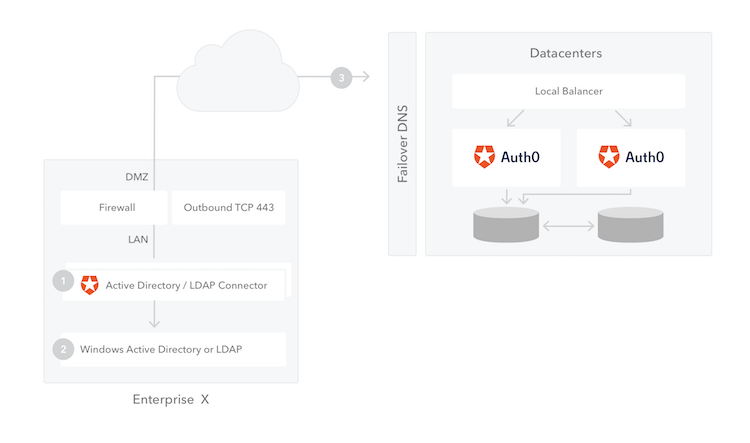
You can install multiple instances of the connector for high availability and load balancing. Also, all connections are out-bound: from the connector to the Auth0 Server, so in general no changes to the firewall need to be applied.
Configuring an AD/LDAP connection in Auth0 requires two simple steps:
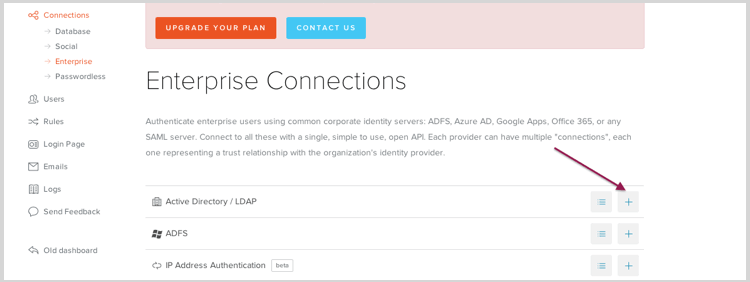
The first step is creating a new Connection on the dashboard:
Connections > Enterprise > AD/LDAP
Name the connection and check whether you want Kerberos enabled for this connection. If you enable this, you need to enter the range of IP addresses from where Kerberos authentication will be enabled. These would typically be the intranet where Kerberos would work.
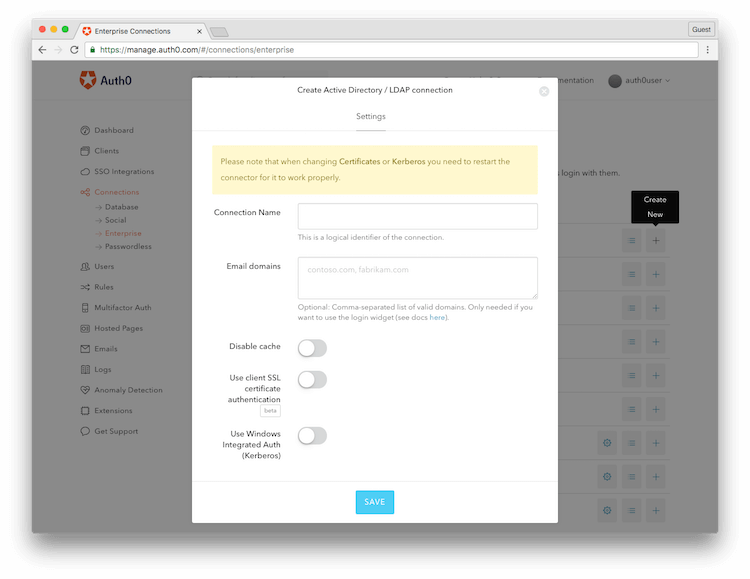
Save the configuration. You are done on the Auth0 side! You will then be prompted to download the AD/LDAP Connector on your machine.
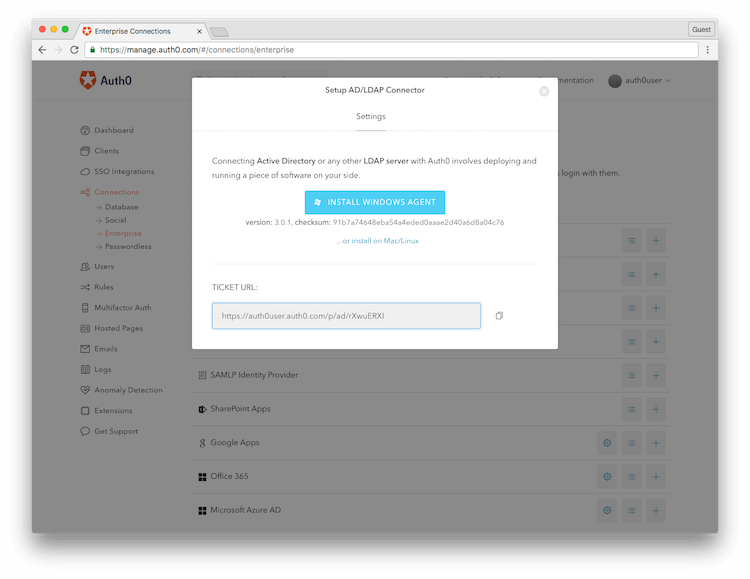
We ship different versions of the Connector to install it on multiple platforms: Windows, Linux and OS X
Keep the TICKET URL at hand as you will need it later.
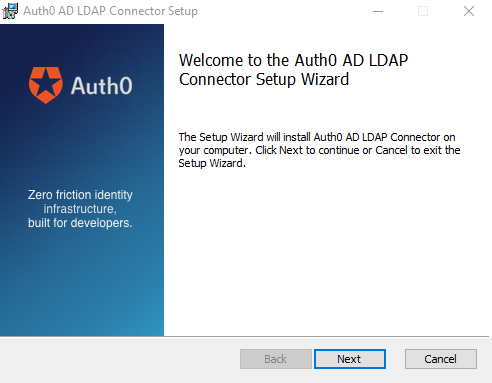
On Windows, the Connector is packaged as a standard installer file (MSI). Run it on the machine you want to install it and follow the installation wizard:
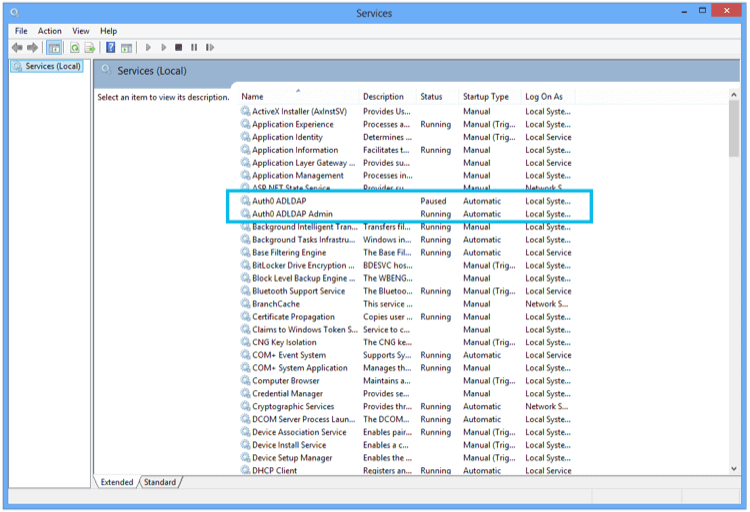
The AD/LDAP Connector in Windows is installed as a Service:
Once the installation is complete, you will see the following screen on a browser (notice that the browser is opening a page on the local machine).
Enter the TICKET URL that was generated in Step 1.
The Ticket URL uniquely identifies this connector in Auth0. Don't share it with anyone. The Connector will use this to communicate with Auth0 Server and automatically complete the configuration.
If successful, the next screen will allow you to enter your Active Directory connection parameters. Namely:
- The LDAP Connection String (this is the network location of the server)
- The Base DN
- A Username and a Password
These are credentials used by the AD/LDAP Connector to authenticate itself with AD.

Go back to your Auth0 Dashboard and you should see a green dot next to your Connection definition:

This signals that the AD/LDAP Connector is online and working. Click in Try to test the entire flow. If you configured Kerberos and testing this inside your network, your login will happen automatically.
If you didn't configure Kerberos or you are outside your intranet you will be prompted for credentials. After successful authentication you should see the test screen showing the user profile:

Notice the User profile includes the Groups a user belongs to in AD. This will include any nested groups (flattened list).
High availability is achieved through multiple instances of the connector running simultaneously.
- Install the connector on the first machine and follow all the steps. Once you have the connection running with only one agent move to the next step.
- In the AD LDAP configuratino page click on Import / Export and then click Export. Keep a copy of the zip file.
- Install the connector on the second machine, when the browser opens and requests entering the Ticket URL, click on Import / Export.
- In the Import section select the file you downloaded from the first machine and click Upload.
- Repeat from step 3 to 4 for every node you want to configure.
We discourage running the connector behind an http proxy.
If you still want to try it out behind a proxy you need an environment variable http_proxy or HTTP_PROXY set to http://my-proxy:8080.
If you always get invalid username or password, try to search a profile by password with the following command:
node -e "require('./lib/config'); var Users = require('./lib/users'); var users = new Users(); users._queue.push(function(){users.getByUserName('the-username-you-are-trying', function (err, user) { console.log(user); } ); });"
By default the connector search using this query LDAP (sAMAccountName={0}), you can override this in the config.json file:
"LDAP_USER_BY_NAME": "(cn={0})",
If you get "Invalid Ticket" when configuring the connector for the first time, the most likely cause is a network issue (e.g. connector behind a proxy). Try connecting to https://{your tenant}.auth0.com/testall with a browser other than IE.
mock-ldap/mock-ldap-server.js is a small in-memory LDAP server (built on ldapjs) that serves the
sample directory in mock-ldap/mock_ldap_data.json. It lets you exercise the connector without a
real Active Directory. It listens on port 4444 with base DN dc=example,dc=org and bind user
cn=admin,dc=example,dc=org / password admin.
node mock-ldap/mock-ldap-server.js
This serves plain ldap://0.0.0.0:4444. Point the connector at it by setting LDAP_URL to
ldap://localhost:4444 in data/config.json.
Pass both --cert and --key to serve ldaps://localhost:4444 instead. If either flag is missing,
the server falls back to plain LDAP.
node mock-ldap/mock-ldap-server.js --cert /path/to/server.crt --key /path/to/server.key
No certificates are committed to the repo — you supply your own. The certificate's SAN must include
localhost, since LDAPS mode binds to that host. A quick way to generate a throwaway chain
(root → intermediate → leaf, with the server presenting leaf + intermediate):
mkdir -p /tmp/ldaps/ca && cd /tmp/ldaps
openssl req -x509 -newkey rsa:2048 -nodes -keyout root.key -out root.crt -days 365 \
  -subj "/CN=Test Root" -addext "basicConstraints=critical,CA:TRUE"
openssl req -newkey rsa:2048 -nodes -keyout int.key -out int.csr -subj "/CN=Test Intermediate"
openssl x509 -req -in int.csr -CA root.crt -CAkey root.key -CAcreateserial -out int.crt -days 365 \
  -extfile <(echo "basicConstraints=critical,CA:TRUE")
openssl req -newkey rsa:2048 -nodes -keyout server.key -out server.csr \
  -subj "/CN=localhost" -addext "subjectAltName=DNS:localhost"
openssl x509 -req -in server.csr -CA int.crt -CAkey int.key -CAcreateserial -out leaf.crt -days 365 \
  -copy_extensions copyall
cat leaf.crt int.crt > server.crt
cp root.crt ca/root.crt
Then start the server with --cert /tmp/ldaps/server.crt --key /tmp/ldaps/server.key and configure
the connector:
	"LDAP_URL": "ldaps://localhost:4444",
	"LDAP_BASE": "dc=example,dc=org",
	"LDAP_BIND_USER": "cn=admin,dc=example,dc=org",
	"SSL_CA_PATH": "/tmp/ldaps/ca"
SSL_CA_PATH points at a directory of CA files (matched by the SSL_CA_FILE pattern, default
.+\.(pem|crt|cer)$), so the connector trusts the private root that signed the LDAPS certificate.
Note: when
SSL_CA_PATHis set, Node uses that CA list as the complete trust store and no longer trusts its built-in public roots. The connector also opens a WSS connection to the Auth0 hub, which is served by a public CA. On Windows and Linux the system cert store (imported automatically) already includes the public roots, so both connections work. For local testing with a dedicated CA directory, add Node's built-in roots alongside your private root so public TLS keeps working:node -e 'const tls=require("tls"),fs=require("fs");fs.writeFileSync("/tmp/ldaps/ca/node-roots.pem", tls.rootCertificates.join("\n")+"\n")'
If you have found a bug or if you have a feature request, please report them by [Opening an issue] (https://auth0.com/docs/troubleshoot/customer-support/open-and-manage-support-tickets).
Please do not report security vulnerabilities on the public GitHub issue tracker. The Responsible Disclosure Program details the procedure for disclosing security issues.
This project is licensed under the MIT license. See the LICENSE file for more info.