NodeJS script checking whether any of the passwords used online are compromised.
It uses the ';--have i been pwned? V3 API, specifically the GET https://api.pwnedpasswords.com/range/{first 5 hash chars} to determine if a password is compromised.
- Node >=
v17
- Clone the repo ☝️, for example:
git clone https://github.com/koalyptus/check-my-secrets.git- Install all the requirements:
npm install- Run the setup command to create your global config folder and a default
.envfile:
npm run setupThis will create a folder at ~/.check-my-secrets and place a default .env file inside it. You can then open this .env file in your preferred text editor to customize your PWDS_KEY and PWDS_SEPARATOR.
~/.check-my-secrets/.env.
If this file is not present, or if PWDS_KEY or PWDS_SEPARATOR are not defined within it, the script will fall back to the built-in defaults:
checkmysecrets.pwds
,By default, passwords are entered using a hidden prompt (recommended). You can change this in your .env file:
PWDS_INPUT_MODE=prompt(default) - Enter passwords via hidden input with masked charactersPWDS_INPUT_MODE=cli- Pass passwords as visible command line arguments
Security notes:
PWDS_KEYis only a keyring identifier (safe to store). Do NOT store the actual encryption key or plaintext secrets in this file.- Restrict file permissions so only your user can read it (on Unix:
chmod 600 ~/.check-my-secrets/.env). - On Windows, ensure the file ACL only grants access to your user account.
-
Manage your passwords using the following commands:
-
Add a password:
npm run secrets:add
With default
promptmode, password input is hidden. You'll be asked to confirm before saving. Press any key to reveal, Enter to save. -
List all stored passwords:
npm run secrets:list
This will display a table of your stored passwords after an interactive confirmation.
-
Delete a password:
npm run secrets:delete
Enter the password to delete (hidden in prompt mode). You'll see the stored password masked and confirm before deletion.
-
Check all your passwords:
npm start
or
npm run secrets:check
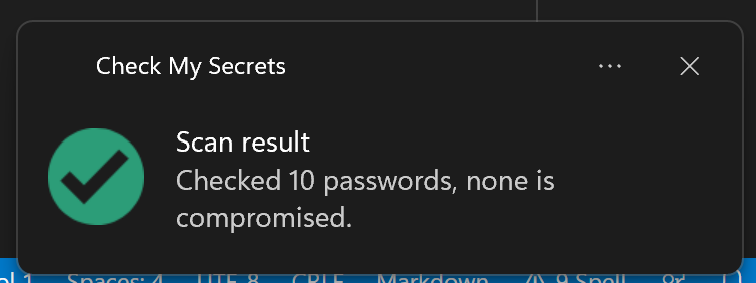
This command will check the integrity of all passwords stored in your keyring. Depending on your OS, a notification will pop up similar to below:
-
To use the CLI commands globally while developing, link the package locally:
npm linkThis creates symlinks for all CLI commands, making them available system-wide:
check-my-secrets- Check all stored passwordssecrets-add- Add a passwordsecrets-check- Check all stored passwordssecrets-delete- Delete a passwordsecrets-list- List all passwords
Example:
check-my-secrets
secrets-add MyPassword123
secrets-list
secrets-delete MyPassword123
To unlink when done:
npm unlink -g check-my-secretsRun all tests:
npm testRun specific test suite:
npm test -- tests/lib/config.test.jsTest coverage:
npm run test:coverageFormat code:
npm run format:fixLint code:
npm run lint