
LeoMoon LightStudio is 100% free and open-source. You can download and use it from here without any limitations.
Download the installable add-on ZIP from the Releases page. Do not use GitHub's Code > Download ZIP, because GitHub’s source ZIP is not packaged for Blender plugin installation.
If you think this plugin speeds up your workflow, consider funding the development of it by purchasing it here. This will help to fix bugs, improve user interface and add new features.
LeoMoon LightStudio is the easiest, fastest and most advanced lighting system for Blender. LeoMoon LightStudio is packed with features and the Light Node has so many options so you can customize each light exactly the way you want.
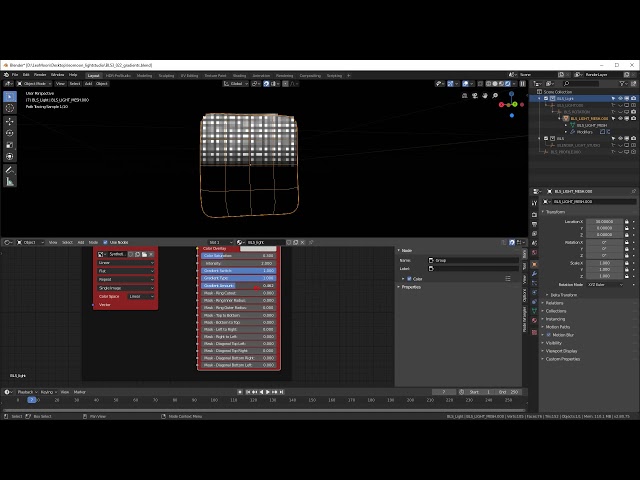
Video below shows the options that are available per light.
- Add/remove lights around objects
- Add multiple light profiles
- Easily switch between light profiles with a single click
- Enable multiple profiles at once with Multi Profile Mode
- Animate profile visibility in Multi Profile Mode
- Each light has many options to customize, including texture, color, intensity, exposure, masks, desaturation, and grid controls
- LightStudio light options can be animated
- Each light can have a different light texture
- Fastest render update while lighting
- 15 Realistic HDR light textures included
- Easy 2D manipulation of lights in the LightStudio Control Panel, with an equirectangular preview that translates to positioning of that light in 3D space
- Toggle a light by double clicking on it in the LightPanel
- Isolate a light by right clicking on it in the LightPanel
- Lights can be added to different render layers
- Export lights as EXR HDRIs
- Import/export light profiles
- Native Blender Light Linking and Shadow Linking per LightStudio light
- Cycles support for advanced mesh lights
- EEVEE support with Basic lights
LeoMoon LightStudio now supports EEVEE if "Basic light" is used.
Advanced mesh lights use Cycles-only Blender light behavior. Basic lights are Blender area lights and are available in EEVEE.
Light Linking target assignments are scene-local. They are not exported to .lls profiles because the linked objects or collections may not exist, or may mean something different, in another scene.
Select a LightStudio light and use the Light Linking and Shadow Linking boxes in the Selected Light panel. Add an object or collection target, then choose In or Ex for that row.
Inincludes the target: the selected light affects that object or collection.Exexcludes the target: the selected light affects everything except that object or collection.- Clearing the last
Light Linkingrow returns receiver behavior to Blender's default. - Clearing the last
Shadow Linkingrow returns shadow behavior to Blender's default.
New LightStudio lights affect everything by default until targets are added. Duplicated lights copy their Light Linking and Shadow Linking rows, but profile import/export intentionally starts imported lights with no linked targets.
Why not just use a background HDR lighting plugin? Because template-based lighting is predictable and limited. For product renders, you need control and flexibility, not fixed presets.
LeoMoon LightStudio lets you build your own lighting setups, save them as light profiles, and import/export those profiles across projects.
See CHANGELOG.md for release history.
Blender 5.1+ (extension format): Always install from the Releases page. Do not use the green "Code → Download ZIP" button. That downloads the source, not the installable extension.
- Download
leomoon-lightstudio-X.Y.Z_blender-A.B.C.zipfrom the Releases page. - In Blender, open
Edit → Preferences → Get Extensions. - Click the ▼ dropdown arrow in the top-right corner of the panel (next to the Repositories selector) and choose Install from Disk….
- Select the downloaded
.zip. The extension is enabled automatically and appears under the Installed section. - Open the N panel to see the LightStudio tab.
Tested with Blender 5.1.1
make venv     # create .venv with ruff + pytest
make check    # ruff lint + pytest
make build    # build dist/leomoon-lightstudio-<ver>_blender-<min>.zip
make install  # build and install into the Blender user profile
make tag      # create an annotated git tag from the manifest version
Override the Blender binary if it isn't on PATH:
make build BLENDER=/path/to/blender