



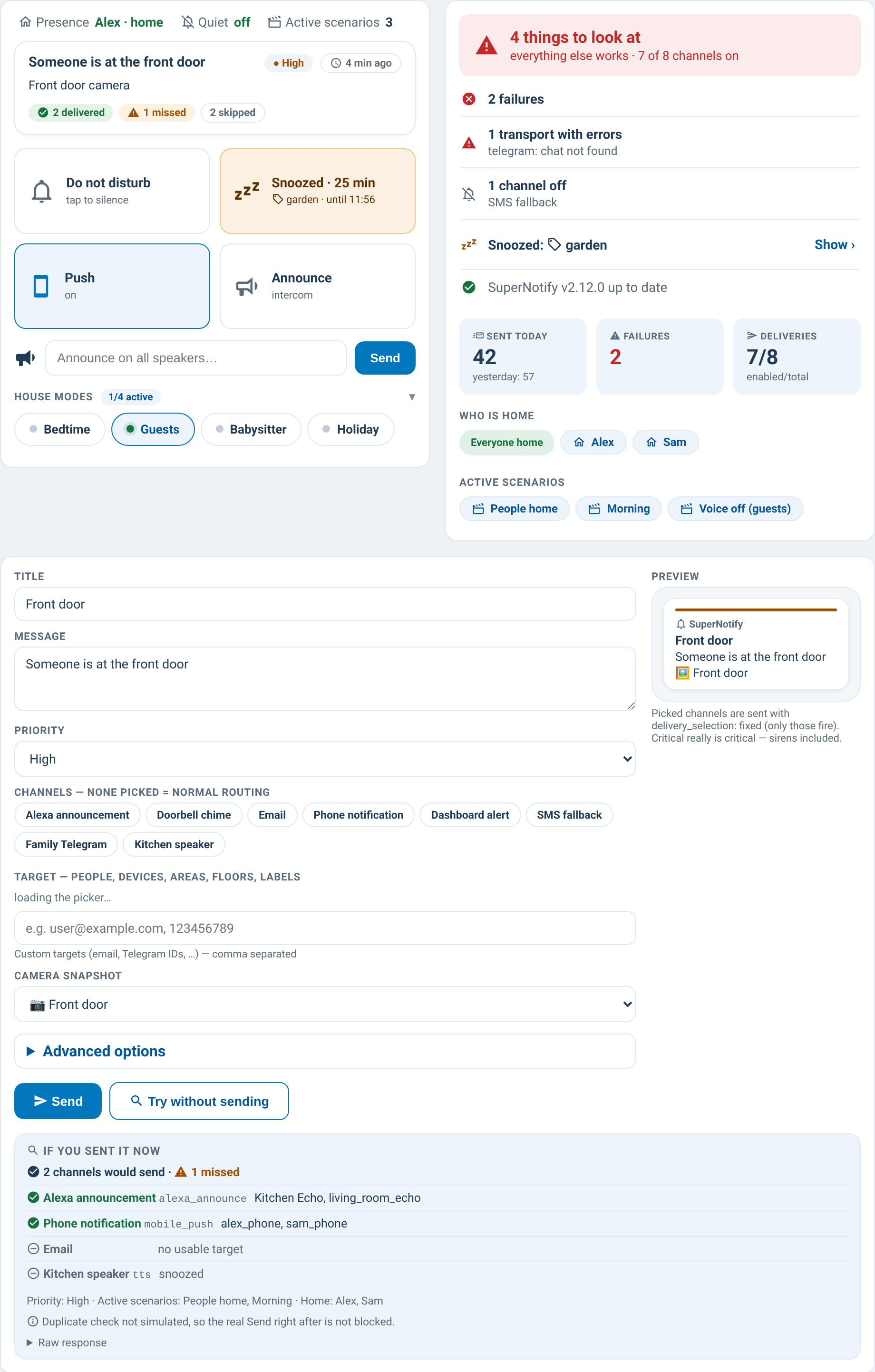
Dashboard cards for SuperNotify, the Home Assistant notification integration: switch channels and scenarios, send or test a notification, and see why it went where it went, without touching YAML.
Who it is for: you already use SuperNotify and want to run it from the dashboard.
What you need: Home Assistant with SuperNotify 2.0 or later; some features need a newer SuperNotify (which ones).
What's new: see the changelog (every version, newest first) or the releases.
- HACS → ⋮ → Custom repositories → add
https://github.com/lollox80/supernotify-cards, type Dashboard. - Install SuperNotify Cards and reload the browser.
- Add a card: Add card → search SuperNotify, or paste one of the examples below.
Manual install (without HACS)
Copy dist/supernotify-control-card.js to config/www/ and add the dashboard resource
/local/supernotify-control-card.js (type: JavaScript module).
Three cards that work with no options at all:
type: custom:supernotify-control-cardtype: custom:supernotify-composer-cardtype: custom:supernotify-archive-cardEach link opens the card's page: screenshot, every option, examples.
| Card | What it does |
|---|---|
| control | Touch-first control centre: last notification, snooze, do-not-disturb, announce, house modes. |
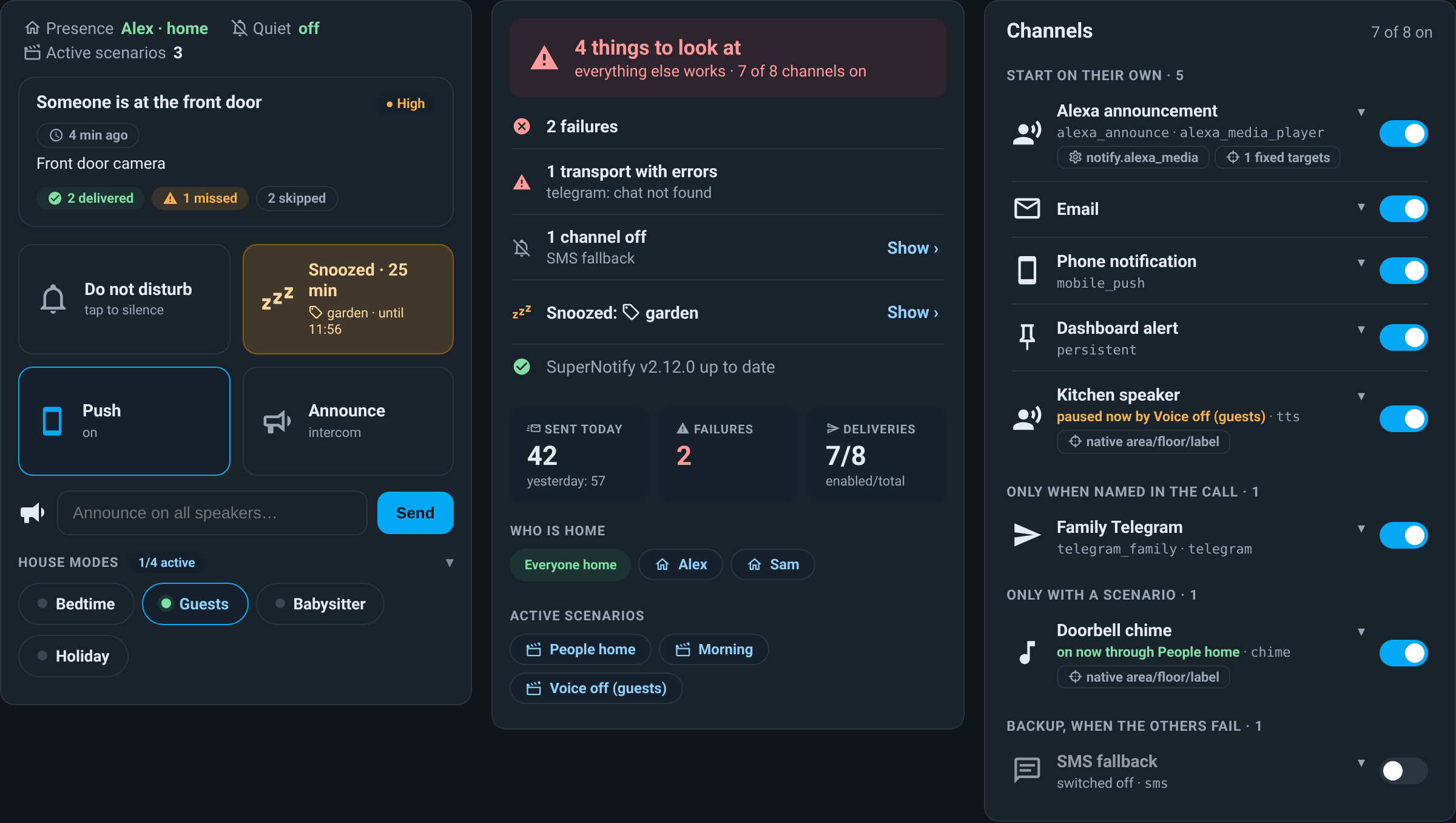
| overview | Health at a glance: version, failures, channels off, snoozes, active scenarios. |
| bands | Time bands: start time and voice volume of each part of the day. |
| deliveries | Every channel with its on/off switch and when it starts. |
| transports | The integrations behind the channels, with error counts. |
| recipients | People: contact points, presence, last notification received. |
| scenarios | Scenarios, which are active now, on/off switches. |
| simulator | Tap scenarios and see which channels would fire. |
| composer | Write and send a notification, or try it without sending. |
| automations | The automations that notify, with search and enable/disable. |
| archive | Notification history and why each one went where it went, channel by channel, with pause. |
| why | Since 0.85 an alias of archive, kept so existing dashboards work. |
| stats | Usage over 7/14/30 days: per day, hour, weekday, channel, priority. |
| tools | Maintenance actions and every SuperNotify question, with readable answers. |
All cards follow the Home Assistant dark theme (screenshot).
Phone and accessibility (0.68.0): rows at least 48 px high on touch screens, everything usable with the keyboard (Tab, Enter, Space), names for screen readers, reduced motion respected.
Quickest: a dashboard that builds itself from what your installation has. In a new dashboard's raw configuration editor:
strategy:
  type: custom:supernotify
Views, options and how to make it your own: docs/dashboard.md. Or, to place every card yourself:
Paste it in a new dashboard (Settings → Dashboards → Add dashboard → New dashboard from scratch, then ⋮ → Edit dashboard → ⋮ → Raw configuration editor). Four views, each card where it is used; the links between cards (a channel off, a person, a scenario) open the right view.
Dashboard YAML
title: Notifications
views:
  - title: Home
    path: home
    icon: mdi:bell
    show_icon_and_title: true
    type: sections
    max_columns: 2
    sections:
      - type: grid
        cards:
          - type: custom:supernotify-control-card
      - type: grid
        cards:
          - type: custom:supernotify-overview-card
          - type: custom:supernotify-archive-card
  - title: Send
    path: send
    icon: mdi:send
    show_icon_and_title: true
    type: sections
    max_columns: 2
    sections:
      - type: grid
        cards:
          - type: custom:supernotify-composer-card
      - type: grid
        cards:
          - type: custom:supernotify-simulator-card
  - title: Setup
    path: setup
    icon: mdi:tune-variant
    show_icon_and_title: true
    type: sections
    max_columns: 3
    sections:
      - type: grid
        cards:
          - type: custom:supernotify-deliveries-card
          - type: custom:supernotify-transports-card
      - type: grid
        cards:
          - type: custom:supernotify-scenarios-card
          - type: custom:supernotify-recipients-card
      - type: grid
        cards:
          - type: custom:supernotify-bands-card
          - type: custom:supernotify-automations-card
  - title: Stats
    path: stats
    icon: mdi:chart-bar
    show_icon_and_title: true
    type: sections
    max_columns: 2
    sections:
      - type: grid
        cards:
          - type: custom:supernotify-stats-card
      - type: grid
        cards:
          - type: custom:supernotify-tools-card
The bands card needs its time bands set up first (bands); the tools card is meant for administrators - put it in a view only they can see (view → Visibility).
A status badge for any view and tile features (pause, last notification, test a recipient) for Home Assistant's tile card, no SuperNotify card needed: docs/native.md.
- Common options and required versions
- Changelog
- Issues and ideas: GitHub issues